How to Install an EA in MT5: Step-by-Step (2026)
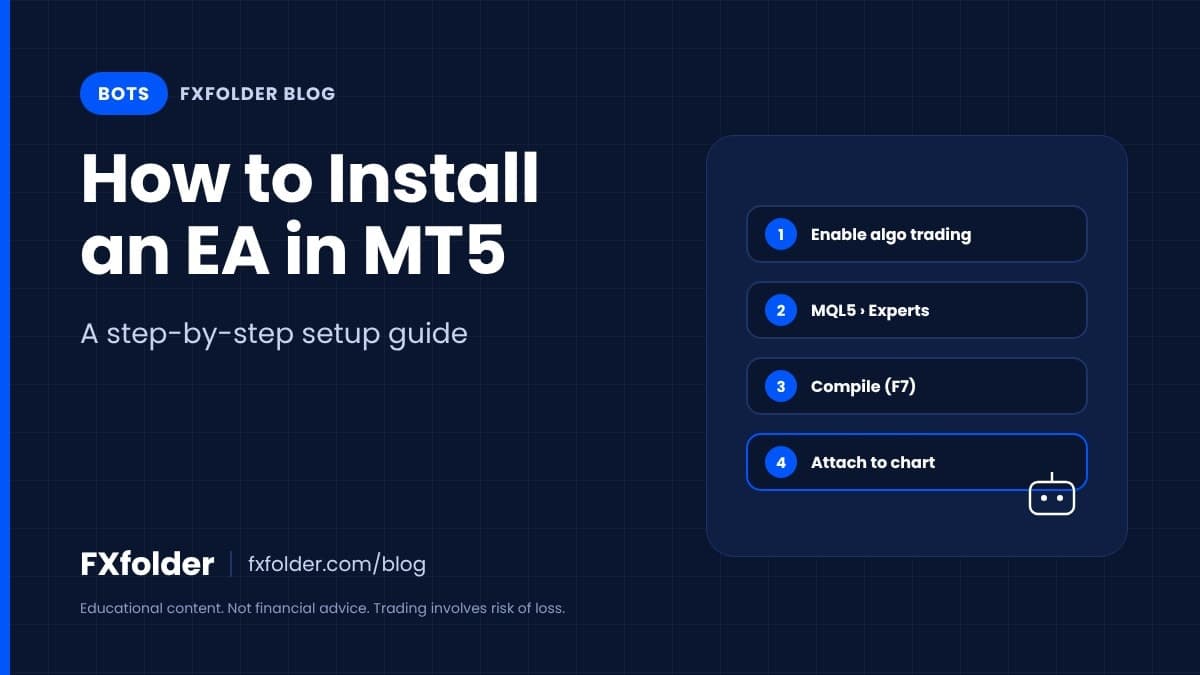
Quick answer: To install an EA in MT5, enable algorithmic trading in Tools → Options → Expert Advisors, open File → Open Data Folder, copy the .mq5 or .ex5 file into MQL5 → Experts, compile it in MetaEditor (F4, then F7) if it is an .mq5 file, refresh the Navigator, drag the EA onto one chart, allow Algo Trading, and confirm the Algo Trading button is on.
Key takeaways
.mq5 files are source code and need compiling; .ex5 files are ready to run.
Algo Trading must be enabled both globally and on the EA itself.
EAs that call web services need their URL added to MT5's WebRequest list.
The EA only runs while the terminal is open and connected.
Always start on a demo account.
Installing an Expert Advisor in MetaTrader 5 takes about five minutes once you know where things are. This guide walks through each step and the most common errors. Before installing anything, read our honest guide to forex trading bots.
Step 1: Check your account type
Confirm whether your MT5 account is hedging or netting, and whether the EA supports it.
Some EAs only run on hedging accounts. For example, FXfolder's beta bots PropPilot and Nightingale run on MT5 hedging accounts, not netting accounts. See MT4 vs MT5.
Step 2: Enable algorithmic trading
Go to Tools → Options → Expert Advisors and tick "Allow algorithmic trading".
If the EA needs to contact a web service, also tick "Allow WebRequest for listed URL" and add the exact address the EA's instructions give you. Without it, the EA cannot fetch its settings, and the Experts log will say so.
Step 3: Copy the EA file into the Experts folder
Open File → Open Data Folder, then go to MQL5 → Experts and paste the file there.
On MT4 the path is the same idea, using the MQL4 folder and a .mq4 or .ex4 file.
Step 4: Compile the EA (for .mq5 files)
Press F4 to open MetaEditor, open the file from the Experts folder in its Navigator, and press F7 to compile.
The Errors tab should end with 0 errors. This creates the .ex5 file that MT5 actually runs. If you received an .ex5 file directly, skip this step.
Step 5: Refresh and attach the EA to a chart
In MT5's Navigator, right-click Expert Advisors and choose Refresh, then drag the EA onto one chart.
On the Common tab, tick "Allow Algo Trading".
On the Inputs tab, review every setting, especially risk per trade and lot size.
Click OK.
Some EAs trade the symbols in their own settings regardless of which chart they sit on, and some refuse to run a second copy on the same account. Follow the EA's instructions.
Step 6: Turn on the Algo Trading button
Check that the Algo Trading button on the main toolbar is switched on.
If it is off, the EA will not place trades even if everything else is correct. The chart's top-right corner usually shows the EA name with an icon showing whether it is active.
Step 7: Check the Experts and Journal tabs
Open the Toolbox (Ctrl+T) and read the Experts and Journal tabs for messages.
This is where errors appear: missing WebRequest permission, invalid inputs, wrong account type or a licence issue.
How do you fix common EA installation errors?
Most problems come from algo trading being off, the file being in the wrong folder, or missing permissions.
EA not in Navigator: wrong folder, or you need to right-click and Refresh.
"Algo trading is disabled": enable it in Options, on the EA's Common tab, and on the toolbar button.
"WebRequest not allowed": add the exact URL in Tools → Options → Expert Advisors.
Compile errors: the file is for a different platform (MQL4 vs MQL5) or is incomplete.
No trades: check the EA's own trading switch, hours and symbol settings.
How do you keep an EA running?
Keep MT5 open and connected; many traders use a VPS for this.
If the terminal closes, the EA stops, although stops already placed at your broker remain. See what is a forex VPS.
FXfolder members can set up PropPilot (prop firm loss limits, MT4/MT5) and Nightingale (gold, MT5), both in beta and both best started on demo.
Frequently asked questions
Where do I put an EA in MT5?
In File → Open Data Folder → MQL5 → Experts. Then refresh the Navigator in MT5.
Do I need to compile an EA?
Only .mq5 source files. Press F4 for MetaEditor, open the file and press F7. .ex5 files are already compiled.
Why is my EA not trading?
Usually the Algo Trading button is off, the EA's own trading switch is off, or the Experts tab shows an error such as missing WebRequest permission.
Can I run an EA on MT5 on my phone?
No. The MT5 mobile apps do not run Expert Advisors. Use the desktop terminal or a VPS.
Should I test an EA on demo first?
Yes. Run it on demo for several weeks, through different market conditions, before risking money.
Track your EA's trades alongside your own with MT5 auto-sync for members. Try FXfolder free for 7 days on the plans page.
Risk disclaimer: Automated trading involves substantial risk of loss and is not suitable for every investor. Bots can lose money, and losses can exceed set limits when prices gap. All content on FXfolder is for educational purposes only and does not constitute financial, investment, or trading advice. Past performance is not indicative of future results.
Educational content only. Not investment advice.